一、最简单:资源管理器直接搜
方法 1:当前文件夹内搜索内容
1️⃣ 打开要搜索的目录
2️⃣ 右上角搜索框输入:
content:关键词
示例:
content:密码
content:IPSec
content:Zabbix
✔️ 支持的文件类型
.txt
.log
.ini
.conf
.xml
.csv
.docx
.xlsx
.pdf(需索引支持)
⚠️ 注意
默认 不搜索未索引目录
大文件 / 日志会比较慢


方法 2:搜索“整个磁盘”
在 此电脑 里搜索:
content:关键词
适合排查:
整机是否出现过某敏感词
内控 / 安全检查


二、让搜索“真的搜内容”
如果你发现 搜不到,但文件里明明有字,99% 是索引问题。
✅ 开启内容索引
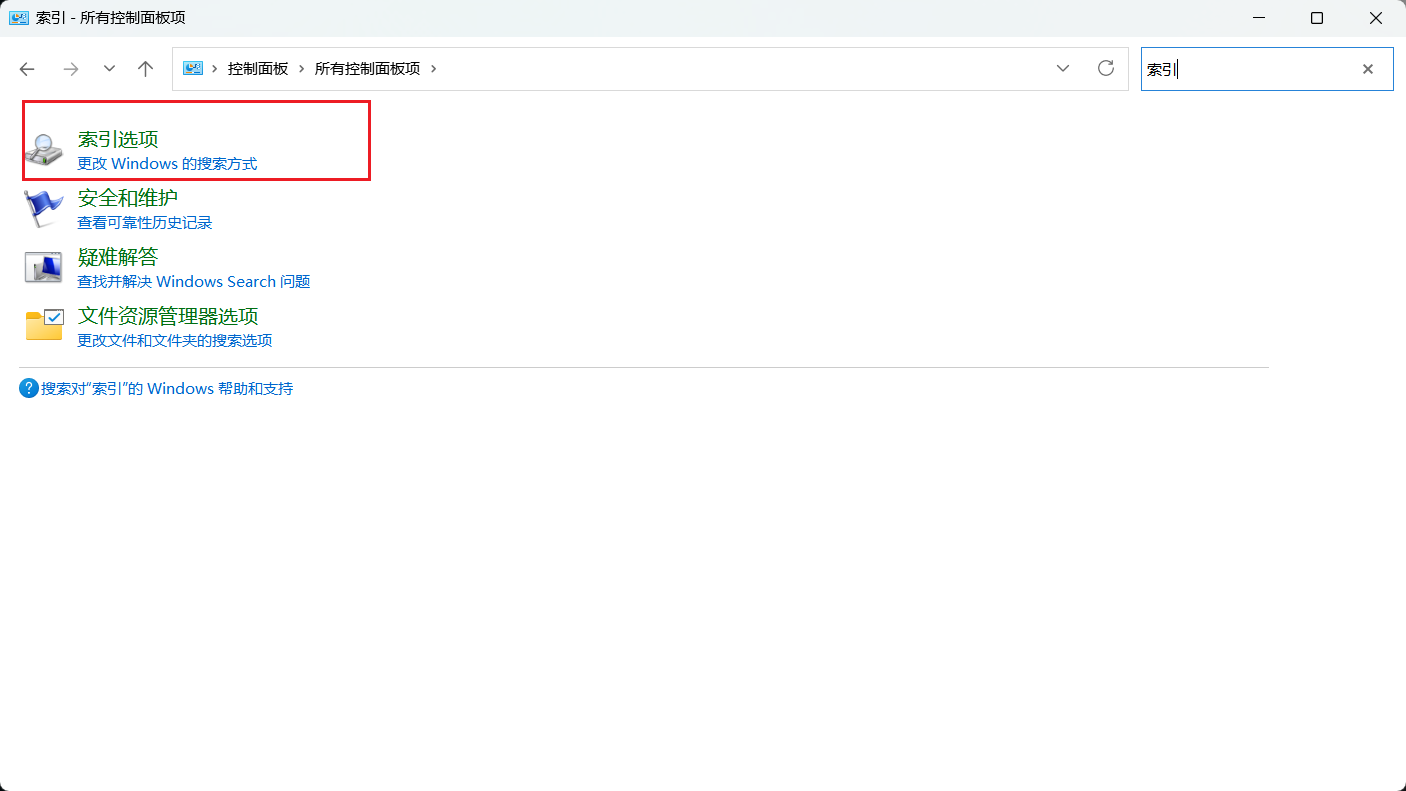
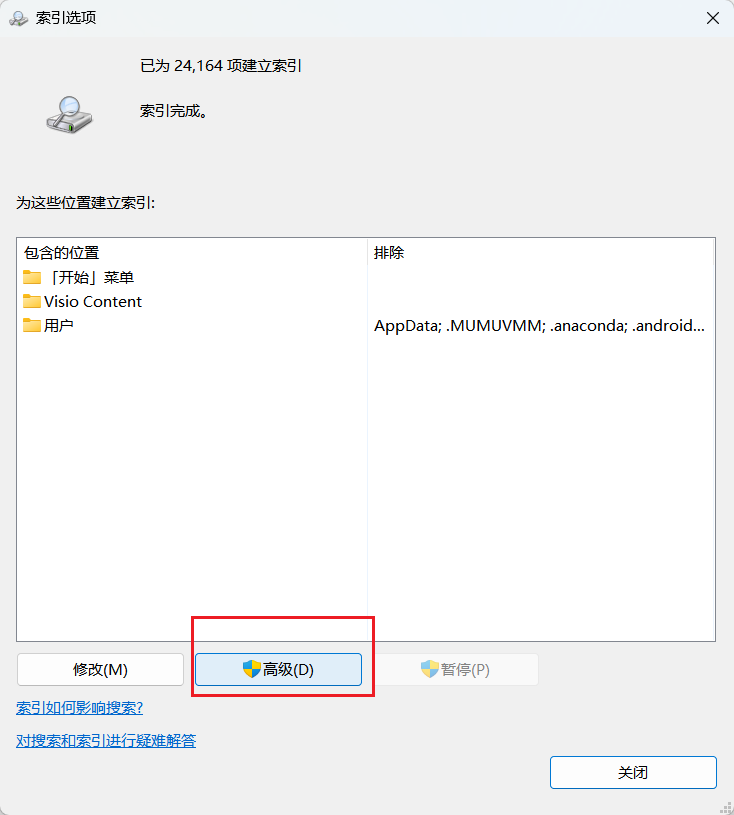
1️⃣ 控制面板 → 索引选项
2️⃣ 点 高级
3️⃣ 勾选:
☑️ 索引文件内容
☑️ 包含文件属性和内容
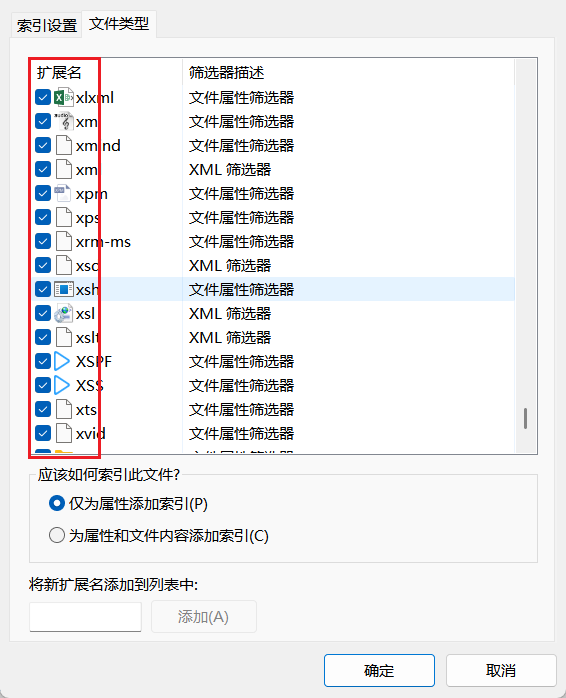
4️⃣ 在 文件类型 中确认:
txt / log / conf / ini / xml = 勾选
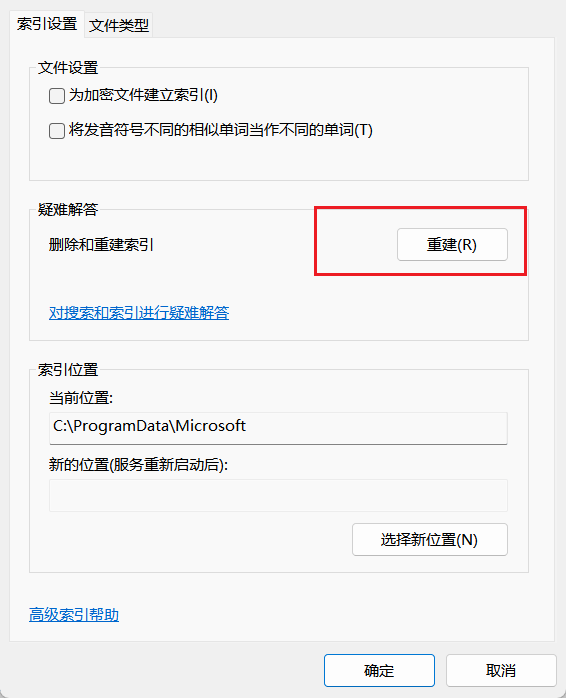
然后 重建索引
⚠️ 重建索引可能需要几分钟到几十分钟
三、命令行方式
方式 1:findstr【不推荐】
搜索整个目录下所有文件内容
findstr /S /I /N "关键词" *.*
参数说明
参数 含义
/S 递归子目录
/I 忽略大小写
/N 显示行号
示例:
findstr /S /I "password" *.conf
findstr /S /I "ipsec" *.*
findstr 是“上世纪级别”的工具,对 Unicode / UTF-8 支持极差。
常见情况:
👉 findstr 不会自动识别 UTF-8,
它会强行按当前代码页去解析文件。
结果就是:
中文关键字 → 解析成乱码
文件内容 → 行内容显示乱码
有时甚至查不到明明存在的内容
chcp 65001
只能改善输出显示
无法解决查找匹配乱码
很多人卡在这里,以为自己哪里配置错了。
没有任何参数可以让 findstr 真正支持 UTF-8 中文。

方式 2:PowerShell
搜索所有文件内容
Get-ChildItem -Recurse -File | Select-String "关键词"
示例:
带行号+文件名
Get-ChildItem -Recurse -File | Select-String "关键词" | Select Path, LineNumber, Line
实际含义是:
从 当前所在目录 (
.) 开始递归查所有文件
搜索“关键词”
搜索整个磁盘
Get-ChildItem "D:\" -Recurse -File | Select-String "关键词"
搜索某个目录
Get-ChildItem "D:\logs" -Recurse -File | Select-String "关键词" | Select Path, LineNumber, Line
只查配置类文件
Get-ChildItem "D:\project" -Recurse -Include .yml,.yaml,*.json,*.conf | Select-String "关键词"
进入目标目录
cd D:\logs
✔️ 优点
支持 UTF-8 / 中文
支持正则
可精确定位文件 + 行号
只查指定类型(强烈推荐)
Get-ChildItem -Recurse -Include *.txt,*.log,*.conf | Select-String "关键词"
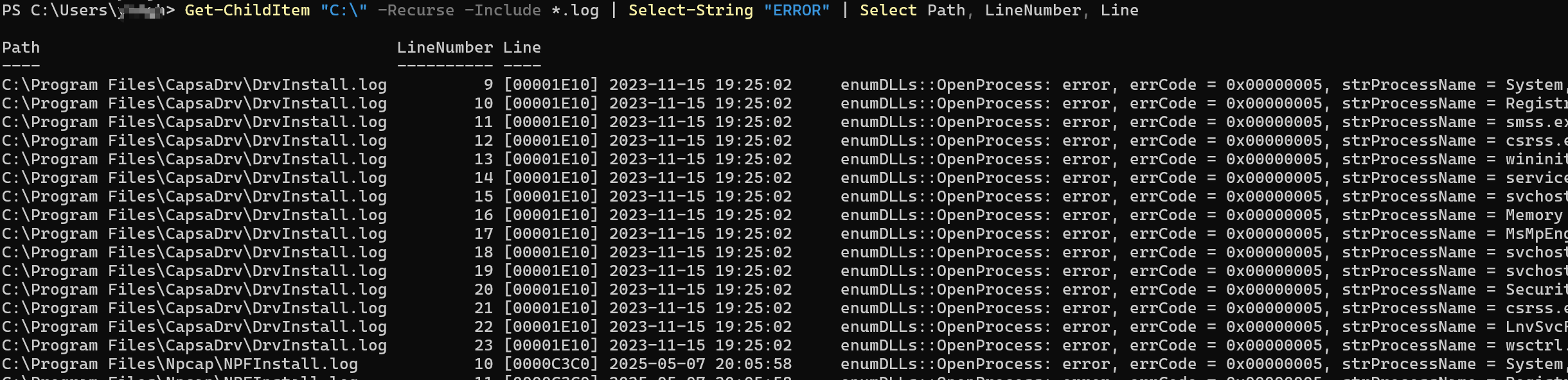
查日志
Get-ChildItem "C:\" -Recurse -Include *.log | Select-String "ERROR" | Select Path, LineNumber, Line
 查配置文件关键词
Get-ChildItem "D:\" -Recurse -Include .conf,.yml,*.yaml | Select-String "zabbix"
六、导出结果
🔹 导出到文件
Get-ChildItem -Recurse -File | Select-String "关键词" | Out-File result.txt
🔹 导出 CSV
Get-ChildItem -Recurse -File | Select-String "关键词" | Select Filename,LineNumber,Line | Export-Csv result.csv -NoTypeInformation
七、常见“搜不到”的原因
问题 原因
中文搜不到 编码问题(建议 PowerShell)
log 搜不到 未开启内容索引
PDF 搜不到 未安装 PDF 索引
权限错误 需管理员 PowerShell
搜很慢 建议限制文件类型
Get-ChildItem -Recurse -File -Include .pdf | Where-Object { $_.Name -like "乒乓球*" }
说明
-Recurse:递归子目录-File:只要文件Name:仅文件名,不含路径*关键词*:模糊匹配
不区分大小写(默认)
Where-Object { $_.Name -like "*关键词*" }
区分大小写
Where-Object { $_.Name -clike "*关键词*" }
为什么这比 findstr 好?
👉 Get-ChildItem 本来就是做“文件系统枚举”的,不是文本搜索。
八、终极建议(Everything)
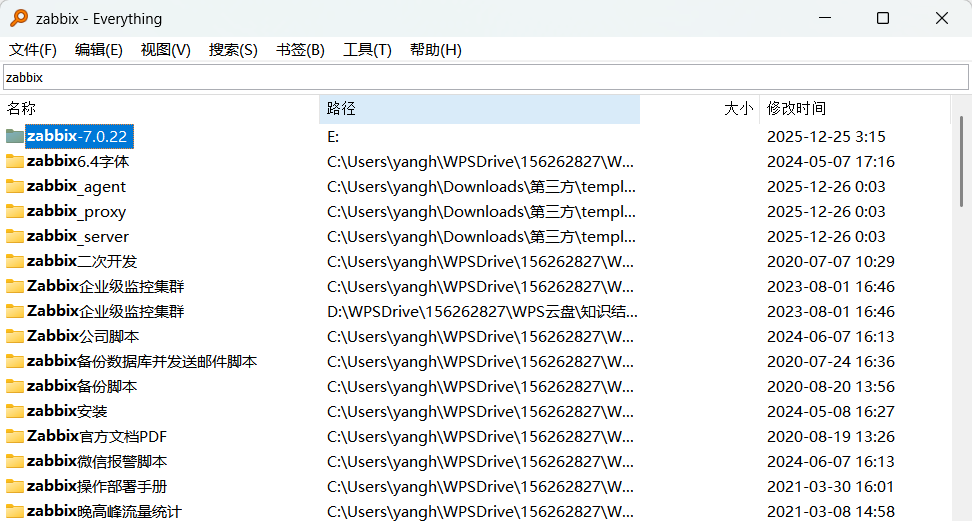
Everything 只要:
管理员运行 + NTFS 磁盘 + 查文件名
就一定是“秒出”的。
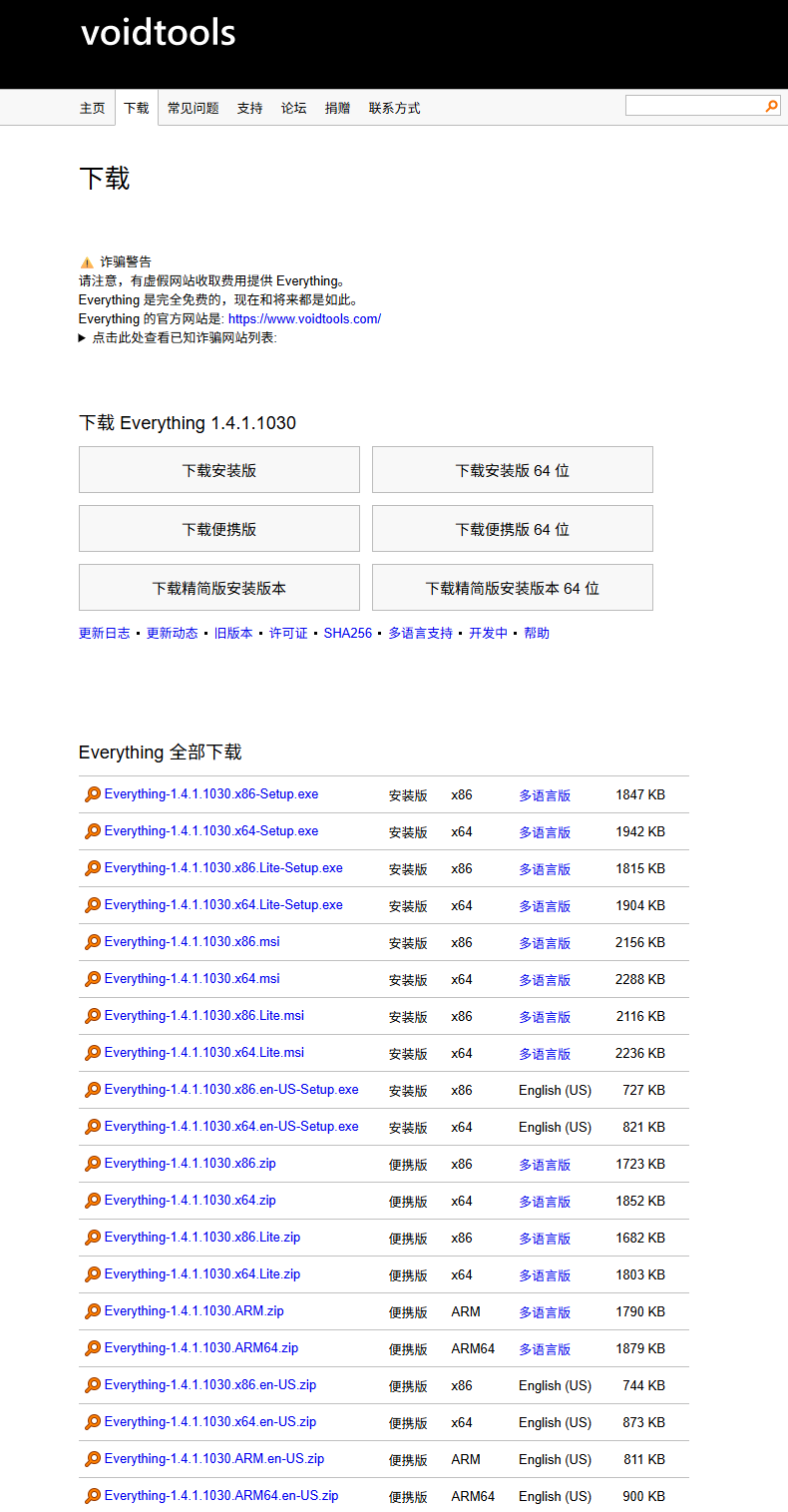
官方网站下载页:
https://www.voidtools.com/zh-cn/downloads/
这是 Everything 作者 voidtools 的官网,无捆绑、无广告。